Songs
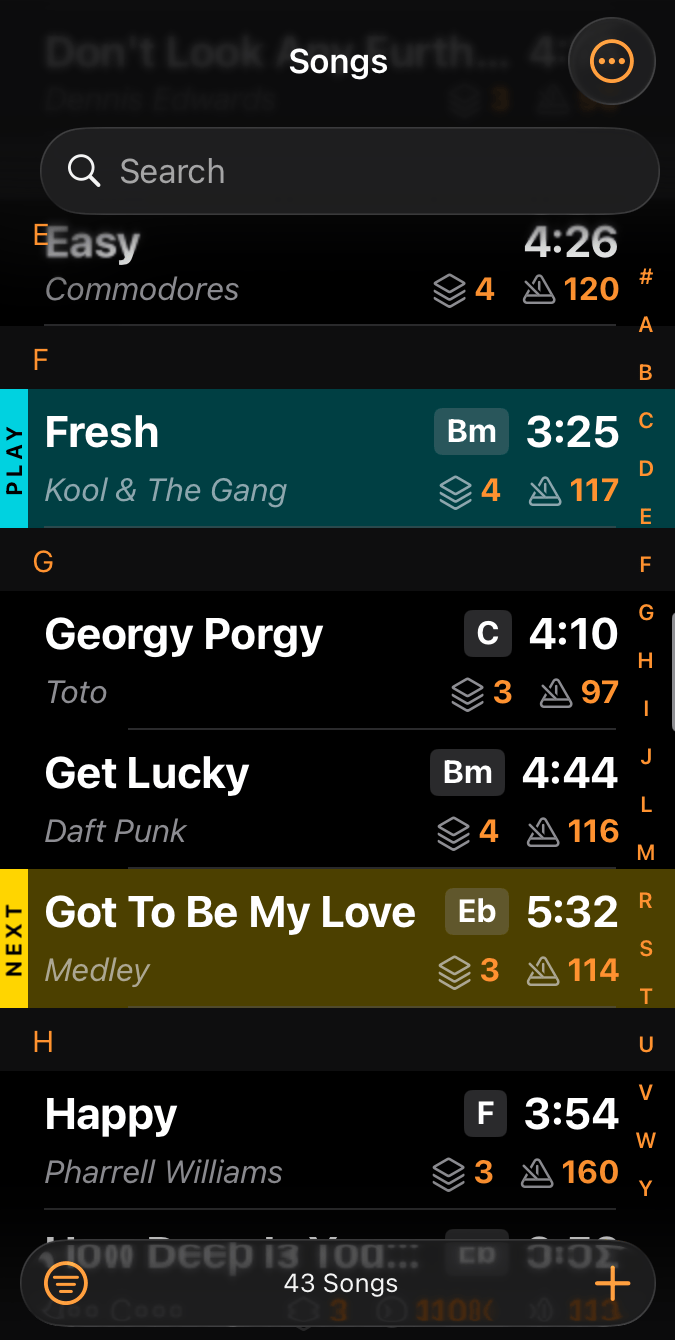
The Songs view shows all songs in your Stage Traxx library. Use the search box at the top to quickly find songs by title or artist across all folders.
Stage Traxx stores all audio files and assets in its own directory structure, with each song's assets kept in a dedicated folder. Audio files must be imported into Stage Traxx before they can be played.
Warning
Never rename items directly in the Stage Traxx folder using a file manager. This will cause missing file errors.
Tip
Double-tap a song to load it and start playback immediately. When automatic queue handling is disabled, double-tap instead adds the song to the queue.
Adding Songs
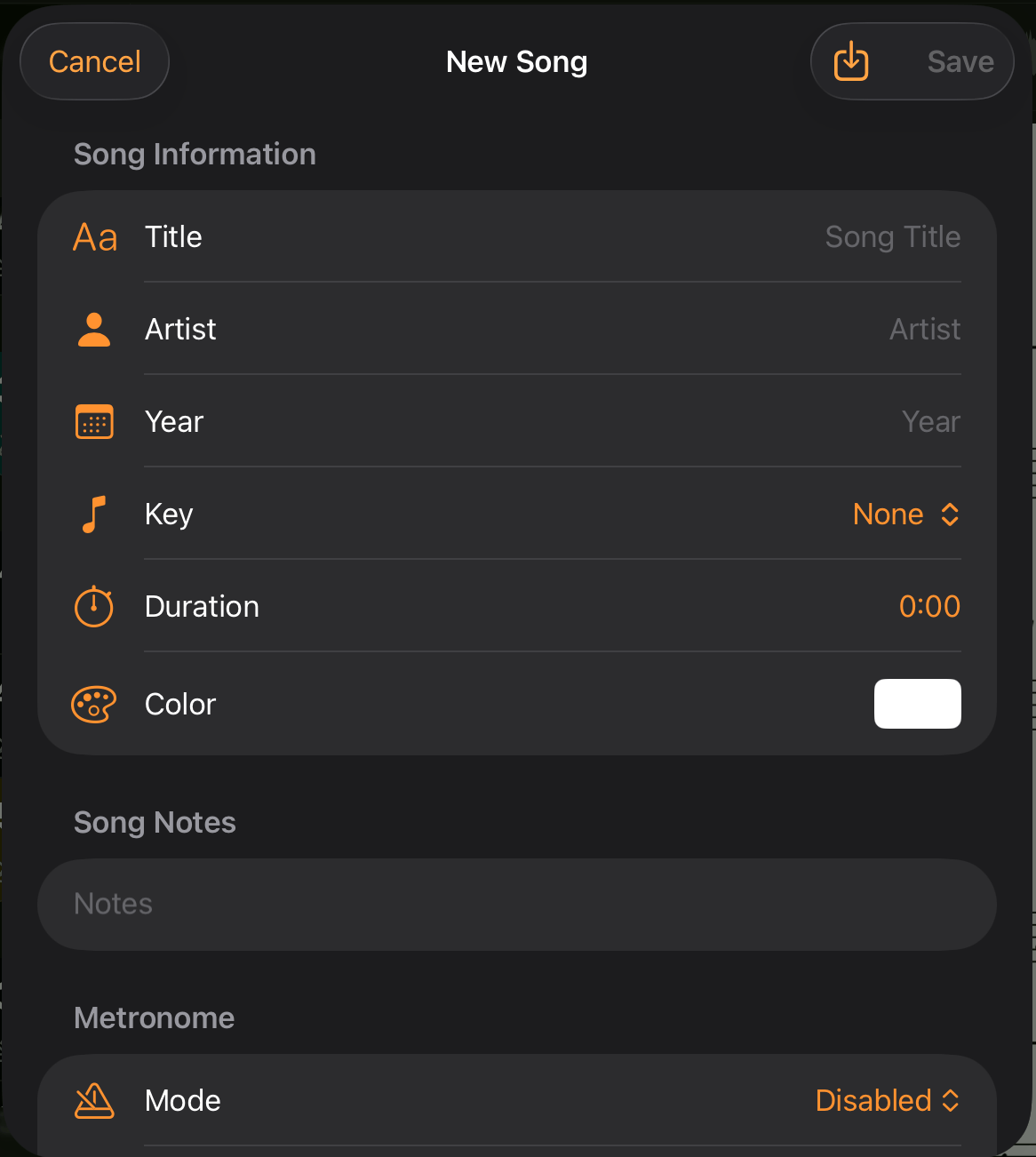
Tap the button in the bottom toolbar to create a new song. The dialog shows a subset of song metadata fields — only the title is required. Tap Save to create the song and open Song Details, where you can add audio files, edit lyrics, and create audio regions.
Batch Import
From the New Song dialog, tap the import button in the navigation bar to import multiple songs at once. You can select audio files, import from your Music Library, or select supported lyrics files. Stage Traxx extracts metadata like title, artist, BPM, year, and lyrics from ID3 tags when available.
When importing lyrics files, Stage Traxx reads the following ChordPro directives to set song properties: {title:} (or {t:}), {artist:}, {key:}, {tempo:}, {duration:}, and {year:}. Lyrics are always imported. Files without any of these directives create a song named after the filename.
Tip
When you select at least 10 songs or import a collection from the Music Library, Stage Traxx automatically creates a playlist containing the imported songs.
Note
Multitrack songs cannot be batch imported. Create the song first, then batch import all tracks from Song Details.
iOS Music Library
Importing from the Music Library on iOS transcodes files to 256 kbit/s M4A format, as iOS does not allow direct access to audio files. This degrades audio quality. On Mac, Music Library files are accessed directly without transcoding.
Warning
Stage Traxx cannot import copy-protected songs. With an Apple Music subscription, most songs are protected and cannot be imported.
Importing Song Archives
Select Import ST4 Files from the More Options menu to import Stage Traxx archives. This works with song export archives, playlist files, and playlist-with-songs files. You can choose whether to overwrite existing songs or keep both versions.
Opening Audio Files in Stage Traxx
You can also start from a file instead of from Stage Traxx. Send one or more audio files to Stage Traxx from the Files app, from AirDrop, from a mail attachment, or from any app with a share sheet, and choose Open in Stage Traxx (or select Stage Traxx as the destination). Stage Traxx asks for confirmation and then creates a new song for each file, reading title, artist, BPM, year, and other metadata from the file's tags where available.
This is the fastest way to grow your library: drop a number of backing tracks onto the app from Files, or AirDrop new tracks from your studio Mac straight to the iPad you play with.
Tip
As with batch import, selecting at least 10 files automatically creates a playlist containing the imported songs.
Searching Songs
The search box at the top of the list finds songs by title and artist. It understands boolean operators and field scoping, and the same syntax works everywhere you can search: the songs list, playlists, the queue, and the song picker.
Matching is case-insensitive and ignores accents, so motorhead finds Motörhead.
Combining Terms
Several words are combined with AND by default — a song must contain all of them:
beatles live
Write AND, OR and NOT in uppercase to combine terms explicitly:
beatles OR stones
live NOT acoustic
A minus sign is shorthand for NOT:
beatles -live
Note
Only uppercase operators count. Lowercase words stay literal, so titles like Not Fade Away or Black or White still search normally.
When you mix operators, NOT binds tightest, then AND, then OR. So beatles OR stones live means beatles or (stones and live).
Searching Specific Fields
Prefix a term with title: or artist: to restrict it to that field:
artist:beatles title:love
Any other prefix is treated as ordinary text.
Phrases
Put quotes around several words to search for them as one phrase:
"strawberry fields"
Example
artist:dylan -live— every Dylan song except the live versions"the wall" OR "dark side"— songs from either albumacoustic NOT artist:young— acoustic songs that aren't by Young
Tip
Tapping a search result loads the song and closes the search automatically, so you go straight from typing to playing.
Editing a Song
Tap a song to load it, then tap the info button in the playbar to open Song Details, where you can edit all song metadata, audio settings, lyrics, and regions.
Duplicating a Song
Select Duplicate from the context menu or tap the icon in the left swipe menu to create a copy. The duplicate shares asset files with the original, so it uses no additional storage space.
Sharing a Song
Select Share from the context menu to export a single song as a Stage Traxx song archive. The archive contains the song and all of its assets, so it can be imported into Stage Traxx on another device.
Tip
To share several songs at once, use Batch Editing.
Deleting a Song
Select Delete from the context menu or tap the icon in the left swipe menu. You'll be asked whether to delete the song's assets as well. Assets that are referenced by other songs will not be deleted regardless of your choice.
Adding Songs to the Queue
- Play Next: Adds the song to the top of the queue. Available in the context menu or via the icon in the right swipe menu.
- Add to Queue: Adds the song to the bottom of the queue. Available in the context menu or via the icon in the right swipe menu.
- Add from Here: Adds the selected song and all following songs to the bottom of the queue. Available in the context menu.
Sorting Songs
Sort options are available in the More Options menu in the navigation bar. You can sort by title, artist, date added, play count, BPM, or year, in ascending or descending order.
Note
An alphabetical index appears when sorting by title on iOS/macOS 26 and later, if your library contains at least 20 songs.
Filtering Songs
Toggle the filter with the filter icon in the bottom toolbar to quickly switch between filtered and unfiltered views. Tap Filtered by to open the filter dialog.
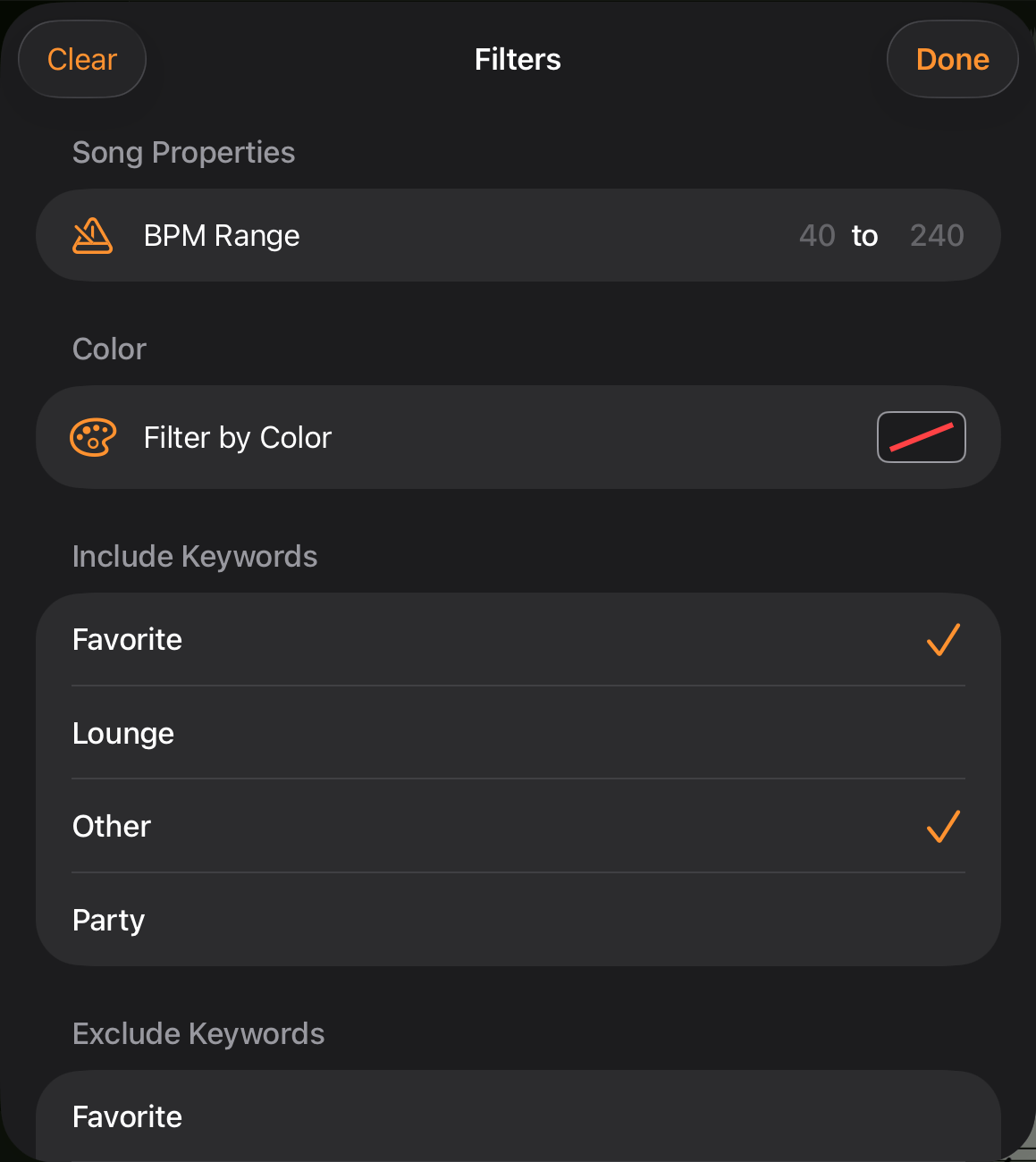
A filter is a list of rules. At the top, choose whether a song must match All rules or Any of them, then tap Add Rule for each condition. Swipe left on a rule to delete it, or tap Clear in the navigation bar to remove all of them.
Each rule combines a property, a condition, and a value. The available properties are:
| Property | Type | Typical conditions |
|---|---|---|
| Title, Artist, Notes | Text | contains, does not contain, begins with, ends with, is, is not |
| BPM, Year, Track Count, Play Count, Capo | Number | is, is not, is greater than, is less than, is between |
| Duration | Length | is greater than, is less than, is between |
| Key | Musical key | is, is not, is in, is not in |
| Color | Color | is, is not |
| Date Added, Last Played | Date | is before, is after, is in the last n days |
| Keyword | Keywords | includes any, includes all, includes none |
| Folder | Folder | is, is not |
Example
- Key is G — everything you can play in one key at a rehearsal
- BPM is between 90 and 120 — mid-tempo material for a set
- Date Added is in the last 30 days — what you have been working on this month
- Keyword includes all
worshipand Play Count is 0 — tagged songs you have never played
Recently used filters are kept in the Recent Filters section at the bottom of the dialog, so you can reapply a combination you built earlier with a single tap.
Tip
The same filter engine powers Smart Playlists. If you find yourself rebuilding the same filter over and over, turn it into a smart playlist instead.
Note
Network clients now get the full filter dialog too, including keyword filtering, so a band member on a client device can narrow the shared library the same way the host can.
Folders
Songs can be organized in a folder hierarchy. Folders can contain subfolders with no limit to the depth.
- Create a folder: Select Add Folder from the More Options menu in the navigation bar.
- Move to a folder: Select Move to Folder from the context menu or tap the icon in the left swipe menu. Select Root to move the song back to the root level.
- Rename a folder: Select Rename from the context menu or tap the icon in the left swipe menu.
- Delete a folder: Select Delete from the context menu or tap the icon in the left swipe menu. Only empty folders can be deleted.
Batch Editing Songs
Enable batch edit mode by selecting Batch Edit from the More Options menu in the navigation bar. Select songs by tapping the circle indicator to the left of each song, or use Select All / Deselect All in the navigation bar.
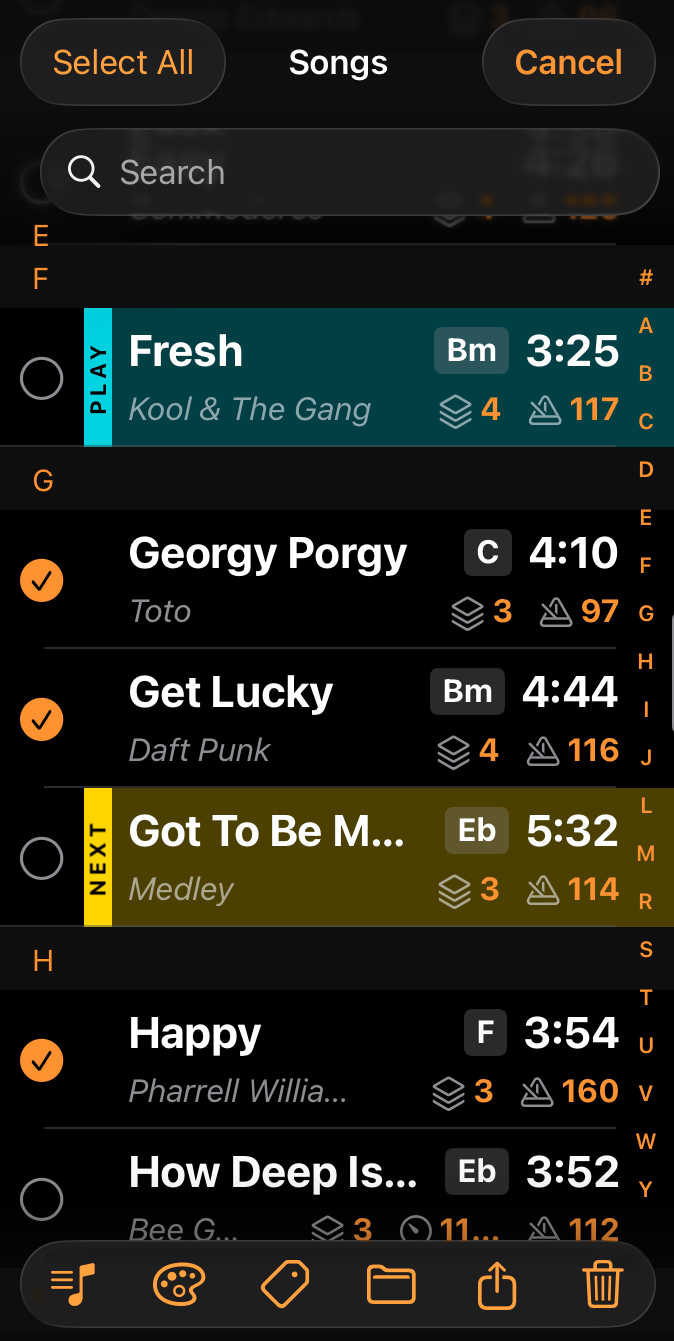
The bottom toolbar provides these actions for selected songs:
- Add to Playlist: Add songs to a playlist
- Color: Change the song title color
- Keywords: Edit keywords for selected songs
- Folder: Move selected songs to a folder
- Share: Export songs as a Stage Traxx song archive
- Delete: Delete selected songs from the library