Song Details
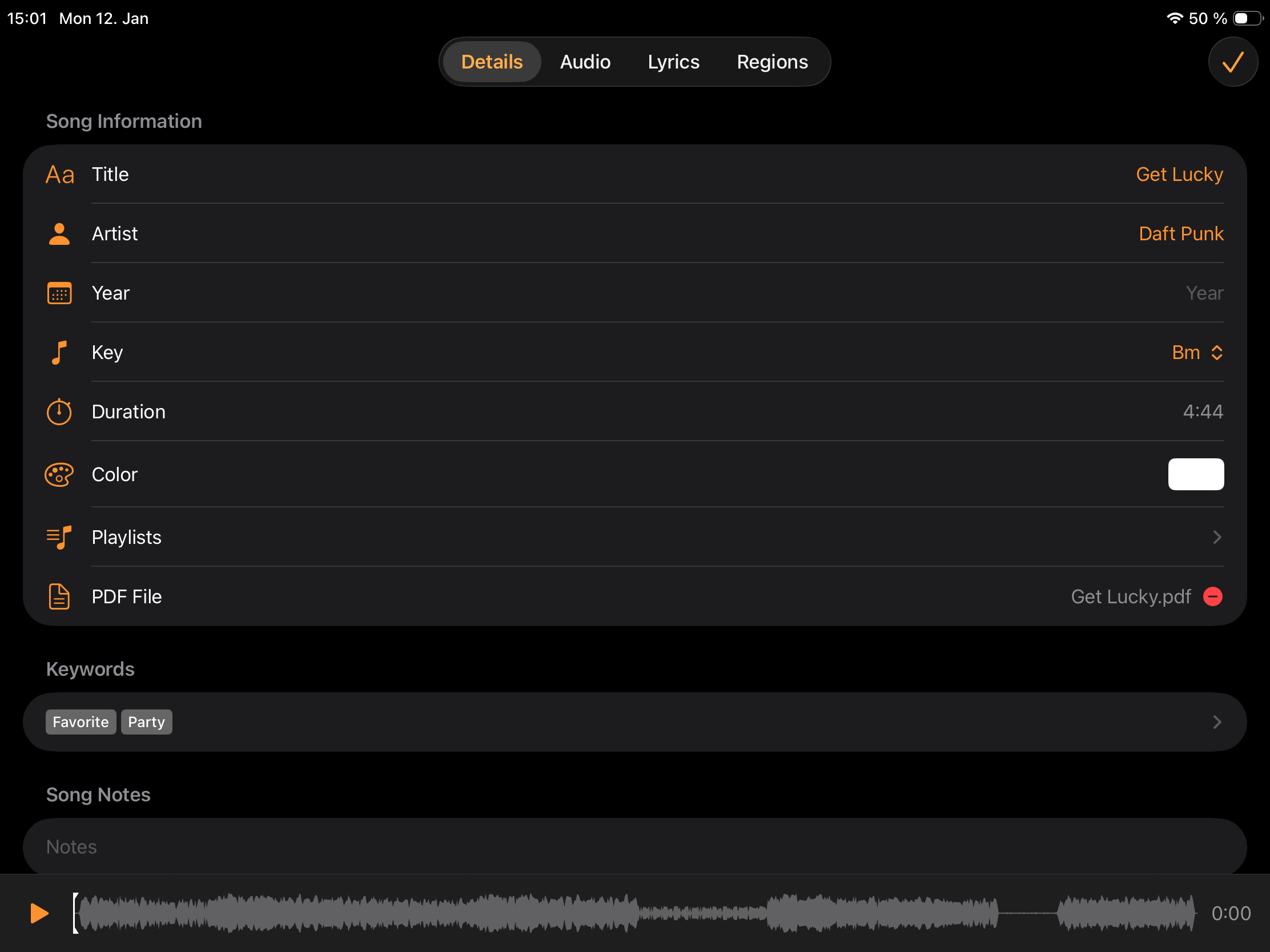
The Song Details screen lets you edit all metadata and settings for a song. Open it by tapping the details button in the playbar.
The screen has up to four tabs depending on the song content:
- Details — Song metadata (described on this page)
- Audio — Configure audio tracks
- Lyrics — Edit lyrics and chords
- Regions — Set up audio regions (only shown for songs with audio tracks)
A mini player at the bottom provides a play button, waveform with audio regions, and playback time. Drag the waveform to seek to a specific position.
The title of the song you are editing is always shown at the top of the screen, so you never lose track of which song your changes apply to.
Editing Several Songs in a Row
The navigation bar has buttons to jump directly to the previous or next song without leaving the editor. The order follows the list you opened the song from. Any changes to the current song are saved before the next one is loaded.
This makes it much faster to work through a batch of songs — for example setting the capo for a whole set, or checking the metronome tempo of every song in a playlist.
Tip
The same idea applies one level deeper: in Track Details you can step between the tracks of a song without returning to the track list.
Song Information
Title
The song title. All audio, PDF, and MIDI files belonging to this song are stored in a folder named after the title.
Note
Renaming a song also renames its folder.
Artist
The artist name for this song. Can be used to sort songs in song lists.
Year
The release year for this song. Can be used to sort songs in song lists.
Key
The musical key for this song. Can be displayed in song lists.
Duration
The song duration. This field is read-only (shown in gray) when the song has audio tracks — the duration is determined by the longest track.
For songs without audio tracks, you can set the duration manually (shown in tint color). This allows you to add timestamped lyrics and MIDI commands and play the song like a regular song with audio files.
Play Count
The number of times this song has been played. Can be used to sort songs in song lists.
Color
A color label for this song, displayed in song lists.
Playlists
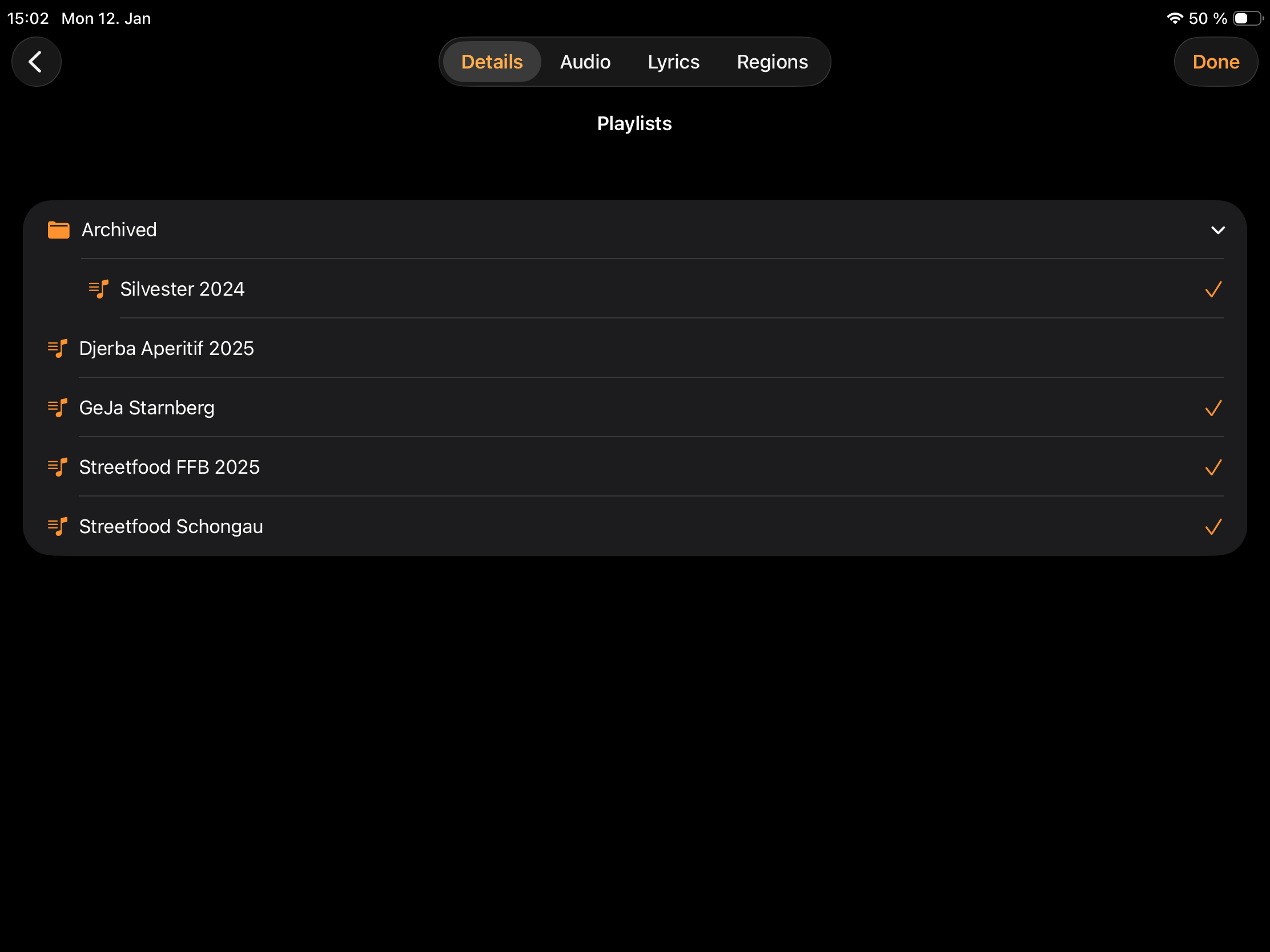
Opens a playlist selector showing a tree view of all playlists. Playlist folders can be collapsed or expanded by tapping on them. Playlists containing this song display a checkmark. Tap a playlist to add the song to the end of that playlist, or tap a playlist with a checkmark to remove the song from it.
PDF File
Attach a PDF file to display in the content area instead of lyrics. See PDF Documents for details on working with PDF files.
Tap Load to add a PDF file. When a PDF is attached, tap the red minus button to remove and delete it.
Keywords
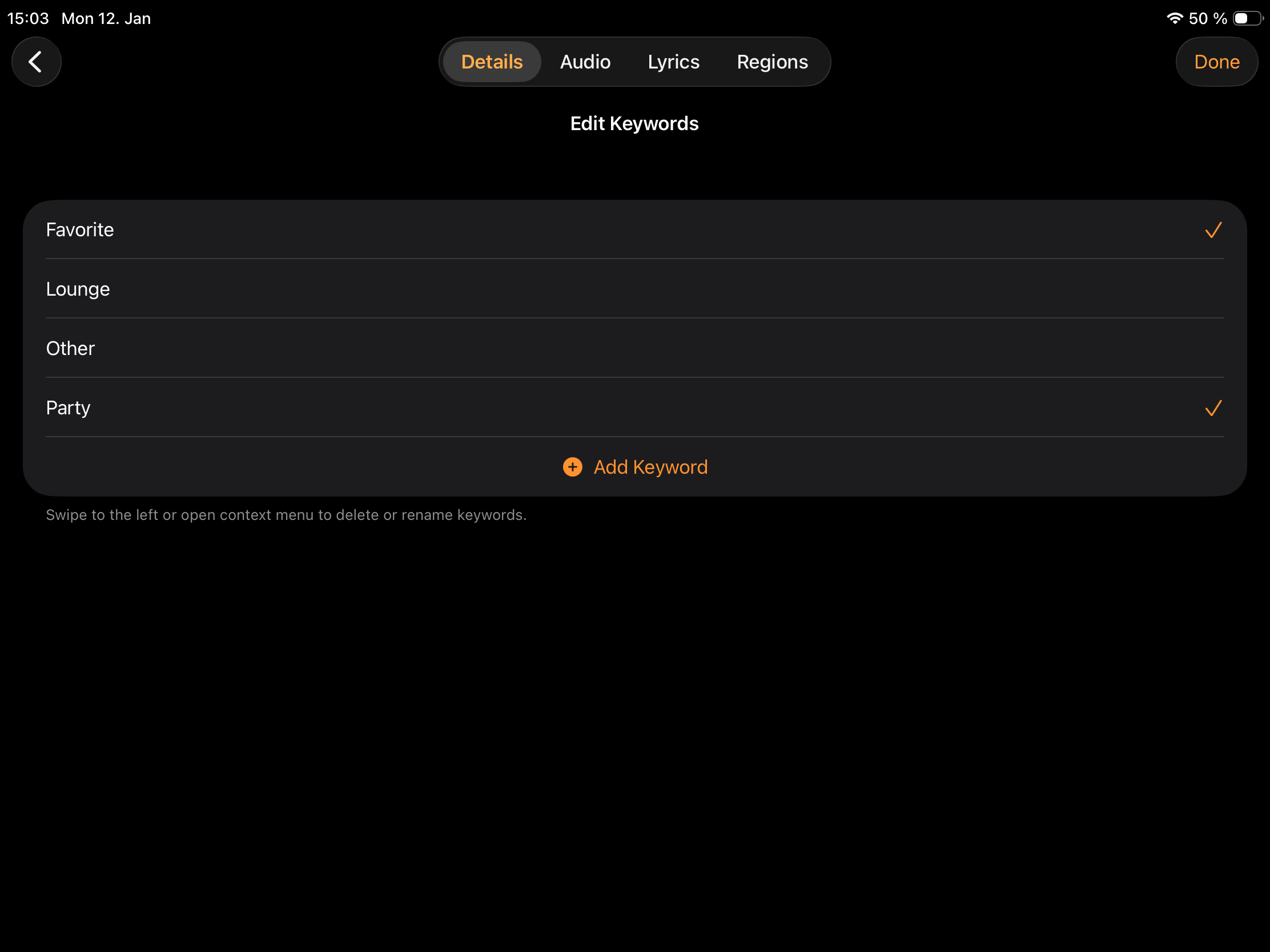
Keywords help you organize and filter your song library. Tap to open the keyword editor, which shows all available keywords. Keywords assigned to this song display a checkmark.
Tap a keyword to toggle its assignment, or use Add Keyword to create a new keyword that is automatically assigned to the current song. Keywords can be renamed or deleted via the context menu or by swiping left.
Note
Deleting a keyword removes it from all songs and playlists it was assigned to.
Song Notes
A text field for adding notes to the song. Notes are displayed in song lists.
Metronome
The metronome provides a visual and audible click at the specified tempo. It uses a virtual beat grid based on the song's BPM, with the first beat aligned to the start of audio playback. The beat grid origin can be shifted using the Start Time setting in Song Details > Audio.
For songs with audio files recorded at a fixed tempo that start on a beat, this ensures the metronome clicks stay in sync with the audio — including when seeking or jumping between audio regions.
Configure the metronome sound and flash color in Settings > Audio > Playback Settings.
Mode
Controls when the metronome plays:
- Disabled — Metronome is off.
- Stop — Plays only when playback is stopped, useful for feeling the tempo before starting.
- Play — Plays only during playback.
- Both — Plays during playback and when stopped.
Note
When the mode is Both or Stop, playback always starts quantized to the beat: pressing play waits for the next beat of the click you are hearing, so the song comes in on the beat instead of wherever you happened to tap. This is automatic and cannot be switched off in these modes.
Type
Controls how the metronome provides feedback:
- Visual Only — Flashes the content area border (or the playbar if no content area is visible).
- Audio Only — Plays the selected click sound.
- Visual & Audio — Combines both flash and sound.
Count-In / Pre-Roll Beats
The number of beats used by the two count-in playback actions for this song. Set it to Off to disable both actions for the song.
Both actions are available as remote actions and assignable controls:
- Play with Count-In: Plays the configured number of metronome clicks and then starts the song exactly on the following beat. Use this to give the band a classic four-count before the track comes in.
- Play with Pre-Roll: Starts playback the configured number of beats earlier in the song, so the music runs up to the point you were parked at. Handy in rehearsal when you want to hear a few bars leading into the section you are working on.
Note
Both actions require a BPM value for the song. Without a tempo there is no beat grid to count.
BPM
The tempo in beats per minute. Enter a value manually or use the tap button to tap in the tempo.
BPM is required when using the metronome, but you can also set it without enabling the metronome to display the tempo in song lists or send MIDI clock at this tempo (when enabled in MIDI Settings).
Tap the gray X to delete the tempo information, which also disables the metronome.
Transpose Chords
Transpose chords displayed in lyrics. This requires chord transposition to be enabled in Settings > General > Lyrics, Chords & PDF.
Only chords recognized by Stage Traxx can be transposed. See Chord Syntax for details on chord formatting.
Semitones
Transpose chords by up to ±11 semitones. This adjustment is applied in addition to any pitch changes if the next option is enabled.
Double-tap the slider to reset to 0.
Capo
The capo position for this song, from 0 (no capo) to 7.
When Apply Capo is enabled in settings, the displayed chords are lowered by the capo position, so you read the shapes you actually finger with the capo on. With the setting disabled, the capo value is stored with the song and shown in song lists but does not change the displayed chords.
The capo is combined with the transpose and pitch settings above. If a song is transposed up two semitones and you put a capo on the second fret, the chord shapes shown are the original ones again.
Example
A song written in E♭ is awkward on guitar. Set Capo to 1 and, with Apply Capo enabled, the chords are displayed in D — easy shapes that sound in the original key.
Note
Like the transpose setting, the capo requires Transpose Chords to be enabled in settings.
Apply Pitch to Chords
When enabled, pitch changes applied to the song audio also transpose the displayed chords accordingly.
MIDI
MIDI File
Attach a MIDI file to play in sync with the audio tracks. MIDI commands from the file are sent to the port selected in MIDI Settings.
Tap the red minus button to remove and delete an attached MIDI file.
MIDI Trigger
Configure a MIDI command that loads this song into the player when received. Enter the command manually using the syntax described in the MIDI section, or use the Learn button to open a dialog that listens for incoming MIDI commands.
Timecode Offset
Sets a time offset for MIDI timecode (MTC) messages for this song. This is only relevant when sync mode is set to MTC in MIDI Settings.
Enter the offset in SMPTE timecode format: HH:MM:SS:FF (hours, minutes, seconds, frames). For example, 01:30:00:00 starts the song at the 1 hour 30 minute mark in the master timecode.
This is useful in theater productions or other scenarios where songs need to sync to a master timecode that doesn't start at zero.