Lyrics
Stage Traxx provides a powerful lyrics system designed for live performance. You can display lyrics with chord symbols, apply text formatting using simplified markdown syntax, enable automatic scrolling during playback, and embed MIDI commands for precise control of external devices.
Lyrics Editor
The lyrics editor provides a full-featured text editing environment with syntax highlighting for formatting tags, chords, timestamps, and MIDI commands.
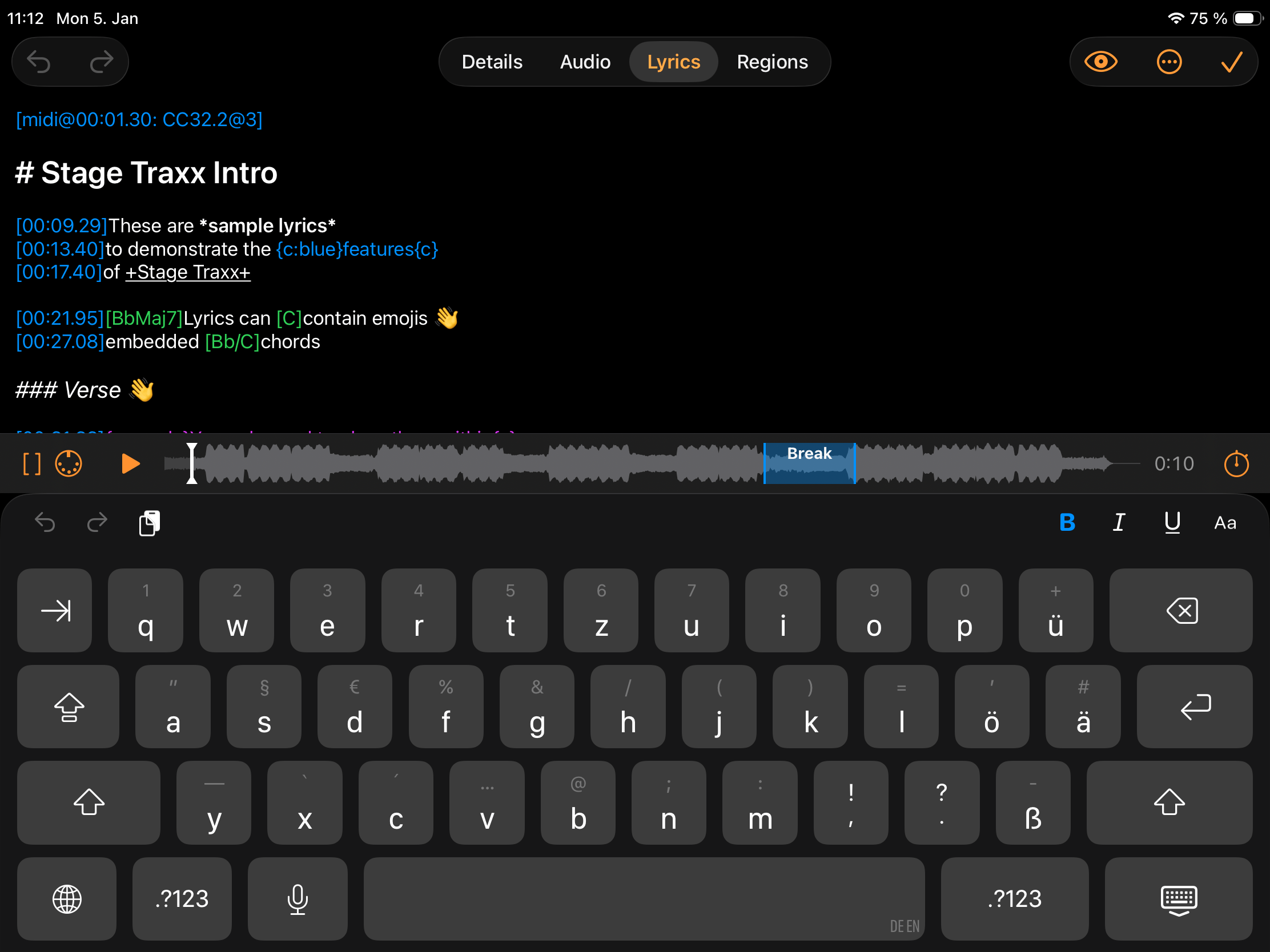
The navigation bar includes undo and redo buttons. The preview toggle and More Options menu are described below.
Preview
Toggle between the editor and preview mode to see how your lyrics will appear during playback. The preview displays lyrics exactly as they render in the content area, including formatting and chord positioning. During playback, the preview supports autoscroll, making it useful for quickly validating formatting and scroll timing.
More Options Menu
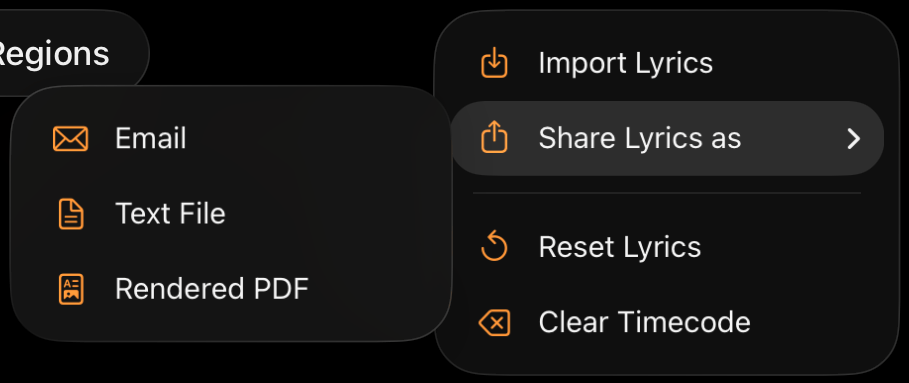
The more options menu provides access to import and export functions, as well as tools for resetting lyrics and clearing time codes.
Search in Lyrics
Opens the search panel at the top of the editor. Type a term to jump between matches with the up and down arrows.
Tap the chevron next to the search field and enable the replace field to switch to search and replace, where you can replace matches one at a time or all at once. This is the quickest way to make bulk edits — for example renaming a section heading throughout a song, changing a chord that occurs many times, or swapping a MIDI program number in every embedded command.
Tip
With a physical keyboard, press Cmd+F to open the search panel.
Note
Search is only available in edit mode, not in preview mode.
Import Lyrics
Import lyrics from various file formats:
- Plain text (.txt)
- ChordPro (.cho, .pro) — limited feature support
- PDF (.pdf)
- Word documents (.doc, .docx) — iOS only
- RTF documents (.rtf)
Note
Only the plain text content is imported — formatting from the original file is not preserved. If you need to retain formatting, use a PDF file for your song instead of text-based lyrics.
Share Lyrics As
Export your lyrics in different formats:
- Email: Creates a new email with the raw lyrics including all tags
- Text File: Saves the raw lyrics to a text file
- Rendered PDF: Exports a PDF that looks exactly like the preview
Reset Lyrics
Reverts the lyrics to their state when the editor was opened, discarding all changes.
Clear Timecode
Removes all time-code tags from the lyrics.
Toolbar

The toolbar provides quick access to common editing functions (from left to right):
- Brackets: Inserts square brackets and places the cursor between them
- Learn MIDI: Opens the MIDI learn dialog, which captures incoming MIDI commands and inserts them as tags. During playback, it continuously adds timed MIDI messages. Tap the stop button to close the dialog.
- Play/Stop: Controls playback for timing your edits
- Waveform: Shows the audio waveform with regions for seeking within the song
- Playback Time: Displays the current playback position
- Add Timecode: Inserts a time-code tag at the cursor position
Note
Audio regions are ignored during playback in the editor. Playback always runs linearly from start to end.
Tip
The Add Timecode function is also available as a remote action and as an assignable control. Assign it to a foot switch or page turner and you can time-code a song hands-free: start playback and tap the pedal on each line while both hands stay on your instrument.
Context Menus
Select text and long-press (or right-click with a mouse) to open the context menu. The menu provides formatting options for the selected text. Additional options appear based on context:
- Seek To Timestamp: When the cursor is within a timestamp tag, seeks the player to that time
- Send MIDI: When the cursor is within a MIDI tag, sends the MIDI command
The standard iOS and Mac text formatting controls also work in the editor. When you apply bold, italic, or underline through the system formatting UI, Stage Traxx writes the matching markers into your lyrics for you, so the result stays plain, portable text you can still edit by hand.
Keyboard Shortcuts
A physical keyboard is recommended for efficient lyrics editing. The following shortcuts are available:
| Shortcut | Action |
|---|---|
| Cmd+B | Format selected text bold |
| Cmd+I | Format selected text italic |
| Cmd+U | Format selected text underline |
| Cmd+Shift+Space | Start/stop playback |
| Cmd+Shift+T | Insert timecode at cursor |
| Cmd+Shift+M | Learn MIDI at cursor |
| Cmd+Shift+B | Insert brackets at cursor |
| Cmd+Ctrl+1 | Toggle text color to red |
| Cmd+Ctrl+2 | Toggle text color to orange |
| Cmd+Ctrl+3 | Toggle text color to yellow |
| Cmd+Ctrl+4 | Toggle text color to green |
| Cmd+Ctrl+5 | Toggle text color to teal blue |
| Cmd+Ctrl+6 | Toggle text color to blue |
| Cmd+Ctrl+7 | Toggle text color to purple |
| Cmd+Ctrl+8 | Toggle text color to pink |
Text Formatting
Stage Traxx uses a simplified markdown syntax for formatting lyrics. You can write tags directly in the editor, or select text and apply formatting using the context menu, keyboard shortcuts, or the formatting buttons above the keyboard.
Formatting comes in two flavors:
- Inline markers for bold, italic, and underline. These must open and close on the same line.
- Tags in curly braces for color and font. These follow the ChordPro convention, are case-insensitive, can be nested, and may span several lines.
Headings
Use hash # characters at the start of a line to create headings. Three levels are supported:
Example
# Heading 1
## Heading 2
### Heading 3
You can assign a default color to each heading level in Theme settings. Headings use the lyrics color unless you set one.
Bold
Wrap text in single asterisks * to make it bold:
Example
*bold text*
Italic
Wrap text in single underscores _ to make it italic:
Example
_italic text_
Underline
Wrap text in single plus signs + to underline text:
Example
+underlined text+
Combining Bold, Italic and Underline
The three markers stack. Nest them around the same text to combine them:
Example
*_bold italic_*
*+bold underline+*
*_+bold italic underline+_*
Colors
Use a color tag to color a passage. Open the tag with a color value, then close it with the same tag name and no value. All three spellings are equivalent, so use whichever you find most readable:
Example
{color: red}This line is red{color}
{colour: red}Same thing, British spelling{colour}
{c: red}Short form{c}
A color can be given as a name or as a hex value with three or six digits:
Example
{c: blue}named color{c}
{c: #f00}short hex — bright red{c}
{c: #ff8800}full hex — orange{c}
Supported color names: red, orange, yellow, green, teal (also tealblue), blue, purple, pink, gray, and primary for the normal lyrics color.
A color tag can span several lines — everything between the opening and closing tag is colored, no matter how many lines it covers:
Example
{c:red}
Everything in this
two line warning is red
{c}
Fonts
Use a font tag to switch the font family for a passage. As with colors, three spellings are equivalent and the closing tag carries no value:
Example
{font: serif}A serif passage{font}
{textfont: mono}Monospaced text{textfont}
{f: script}Handwritten look{f}
The following font styles are available:
| Value | Result |
|---|---|
sans or sans-serif |
Clean sans-serif (the system font) |
serif |
Serif, in the style of Georgia |
mono or monospace |
Fixed-width (Menlo) |
script |
Handwritten, chalkboard style |
Set the font used for the rest of your lyrics with Font Style in settings. Font tags override that default for the passage they enclose.
Note
An unknown font name is ignored: the tag disappears and the text keeps the default font.
Tip
Switch to mono for a section where you have aligned chords over the lyrics by hand, and leave the rest of the song in a proportional font that is easier to read at a distance.
Nesting Tags
Color and font tags can be nested and combined with the inline markers:
Example
{c:red}{f:script}*Big finish!*{f}{c}
Each closing tag closes the most recently opened tag of that kind.
Comments
Lines starting with a semicolon ; are treated as comments and will not be displayed in the content area. Use comments to add notes or temporarily hide sections.
Example
; This line won't be displayed